
Berry‑AI
on your PC
Resume your conversations, analyze an attachment, or find information in documents in your library. Berry‑AI 1.1.0 arrives with the system update after installing Boreale.
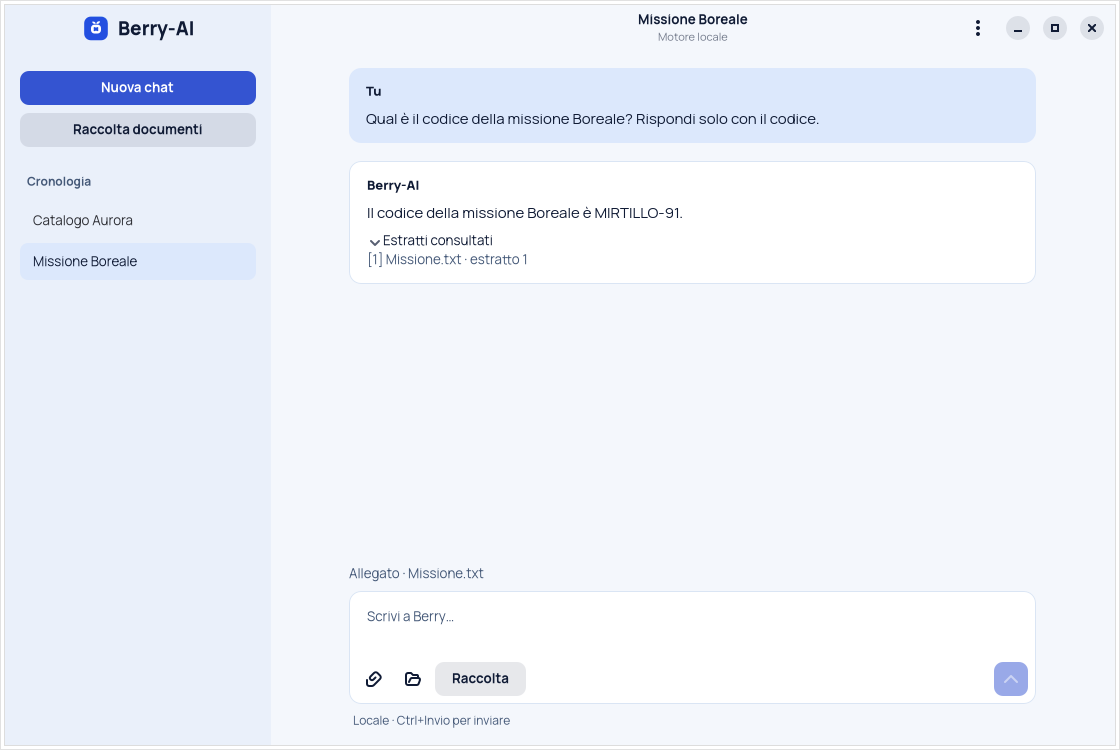
What's new in Berry‑AI 1.1.0
- Boreale style desktop app. Open Berry‑AI from GNOME. The interface follows the Ice and Night themes and uses Blueberry Sans.
- Local history. Create multiple chats, resume a conversation from the sidebar, rename or delete it.
- Chat attachments. Use the paperclip to add a file and ask them to summarize it, explain a passage, or look up a piece of data.
- Document collection. Add files to reuse and activate Collection in the chats where you want to consult them.
- Sources and answers in real time. Read the output as it is generated and see references to the excerpts used. You can stop and try again.
- Offline use. The Boreale model processes applications and documents on the PC. History and indexed text remain in the local profile. The terminal command is still available.
Supports PDF with text, DOCX, ODT, TXT, Markdown and CSV up to 24 MiB each. For PDF scans, perform OCR first. For long documents, ask questions focused on the passages that interest you.
How to get the new app
- Install blueBerryOS v1.0 Boreale, log in to GNOME and connect to the Internet to download the update.
- Open Berry Security → Updates → Open Software. Check for updates and install Berry‑AI 1.1.0.
- Open Berry‑AI from the blueBerryOS menu. From here you can also use the desktop app offline.
The model included in Boreale
Qwen2.5-1.5B-Instruct
It is a language model for generating text, provided in GGUF format with Q4_K_M quantization. Quantization reduces the space occupied by weights. The 1.12 GB file is already in the ISO and runs on the llama.cpp b12244 engine on CPU.
Read the Qwen card- Format
- GGUF · Q4_K_M
- Context configured
- 4,096 tokens
- Processing
- CPU · one interaction at a time
- Model license
- Apache 2.0
The first conversation
- Open Berry‑AI and select New chat. Write the request and press Ctrl+Invio or the submit button.
- If you want to analyze a document, attach it to the chat and ask a specific question. You can open Excerpts consulted below the answer.
- Reopen the conversation from history whenever you want. Check names, dates and technical information before using the answer.
Example with an attachment
What deadlines does the document indicate? List them by date and indicate which excerpt each comes from.
Start or stop the engine from the terminal
In the terminal client the conversation remains in memory. USA /reset to start again and /exit to close it.
blueberry-ai --start-servicesystemctl --user stop blueberry-ai.serviceIf you have problems loading, read the service messages.
journalctl --user -u blueberry-ai.service -n 40 --no-pagerThree requests to try
Choose an example and copy the request into Berry‑AI. On the site you read a canned response.
Request
Get these notes in order: pay the bill, book the train, file the receipt. Create a list of three items.
Example answer
Pay the bill. Book the train. Archive the receipt.
Berry‑AI for code writers
Paste a short function and explain what result you need. You can ask for an explanation, edge cases, a draft change, or unit tests. The chat works on the text you give it and returns a response to check in your development environment.
For a large project, work on one snippet at a time and specify the language, version, and expected behavior. Remove tokens and credentials from shards.
Example to copy into Berry‑AI
Write three tests with unittest for the Python function def normalize(name): return name.strip().lower(). Cover border spaces, capitalization and empty string. Explain what each test tests.
How to install another GGUF model
Use the engine already included in Boreale. The configuration applies to your account and the original template remains available for restoration.
1. Download the GGUF file
Choose a template Instruct into a single GGUF file, compatible with llama.cpp b12244. Check license, hash and requirements on the author's sheet. To test with a smaller file you can choose Qwen2.5-0.5B-Instruct Q4_K_M. Save the file as modello.gguf in the Downloaded folder. 0.5B model sheet
download="$(xdg-user-dir DOWNLOAD)/modello.gguf"
models="$HOME/.local/share/berry-ai/modelli"
mkdir -p "$models"
cp -i -- "$download" "$models/modello.gguf"
sha256sum "$models/modello.gguf"
Compare the result of sha256sum with the imprint indicated by the distributor, if available. The file on disk is only a part of the necessary memory running.
2. Select it in the service
Close Berry‑AI and paste the block into Terminal, as a normal user. If the configuration file already exists, review it before repeating this procedure.
unit="$HOME/.config/systemd/user/blueberry-ai.service.d"
mkdir -p "$unit"
test -f "$HOME/.local/share/berry-ai/modelli/modello.gguf" && (
  set -C
  cat > "$unit/90-modello-locale.conf" <<'CONF'
[Service]
ExecStart=
ExecStart=/usr/lib/blueberry/llama/llama-server --model "%h/.local/share/berry-ai/modelli/modello.gguf" --host 127.0.0.1 --port 8080 --ctx-size 4096 --parallel 1 --n-gpu-layers 0 --offline --cors-origins localhost --no-webui --no-agent
CONF
) && systemctl --user daemon-reload &&
systemctl --user restart blueberry-ai.service
3. Check your answer
When the engine has finished loading the file, reopen Berry‑AI and try a short question. If the upload doesn't finish, check the journal and check the format, disk space, and RAM.
curl --noproxy '*' -fsS http://127.0.0.1:8080/health
journalctl --user -u blueberry-ai.service -n 40 --no-pager
Return to the Boreale model
Remove the configuration file created in step 2. The service resumes the model provided by the distribution.
rm -f -- "$HOME/.config/systemd/user/blueberry-ai.service.d/90-modello-locale.conf"
systemctl --user daemon-reload
systemctl --user restart blueberry-ai.service
Release llama.cpp b12244 · Sources and footprints included in the ISO