
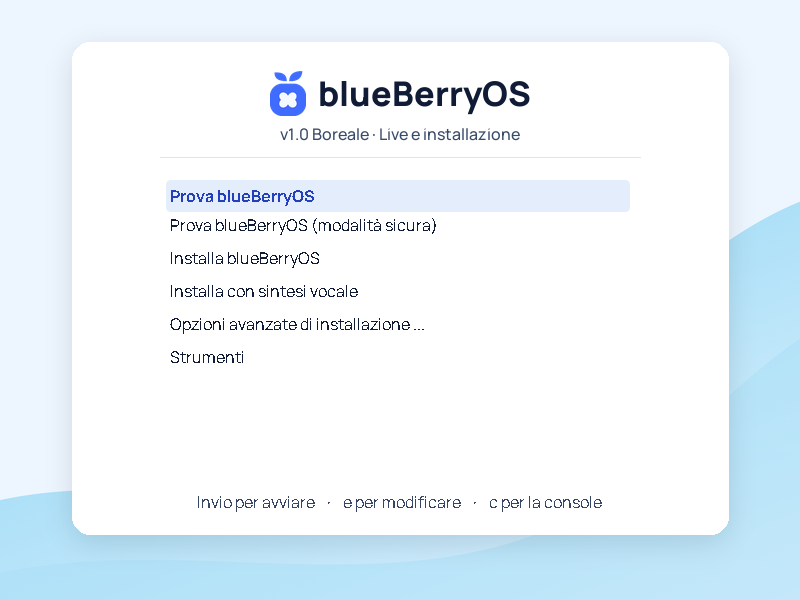
Try it in live mode
You choose Try blueBerryOS. You log into GNOME from the stick, you can open apps, try Berry‑AI, and check your network, screen, and peripherals before installing.
Download Boreale as an ISO for PC, appliance for VirtualBox or image for Raspberry Pi. The three editions include GNOME, LibreOffice, Thunderbird, and Berry‑AI.
Use the ISO to try Boreale from a USB stick or in a VM, or to start the graphical installer.
756f05c43ece5266e0fd7d4869751a61d44db935d1a24c2f11a78afd901be4c6In VirtualBox on a 64-bit Intel or AMD PC, choose Import appliances and open the OVA file. Start the VM and select Try blueBerryOS to enter the live desktop. You can also test the installer using the included blank virtual disk.
c07134cc7d14ad26d344508ea1ab41a4ebca59f50ad3894431afb1b3209e18aeFor Raspberry Pi 4 and 5 with at least 4 GB of RAM. Use a microSD of at least 16 GB and connect the screen and keyboard for the first boot.
.img.gz.07337df088d2d553c81f6d8f6635df3b5c88788d52a04596ba614592d62c0111Boot an AMD64 PC from a prepared ISO stick or attach the image to a VM. From the Boreale menu you can start in two ways.
You choose Try blueBerryOS. You log into GNOME from the stick, you can open apps, try Berry‑AI, and check your network, screen, and peripherals before installing.
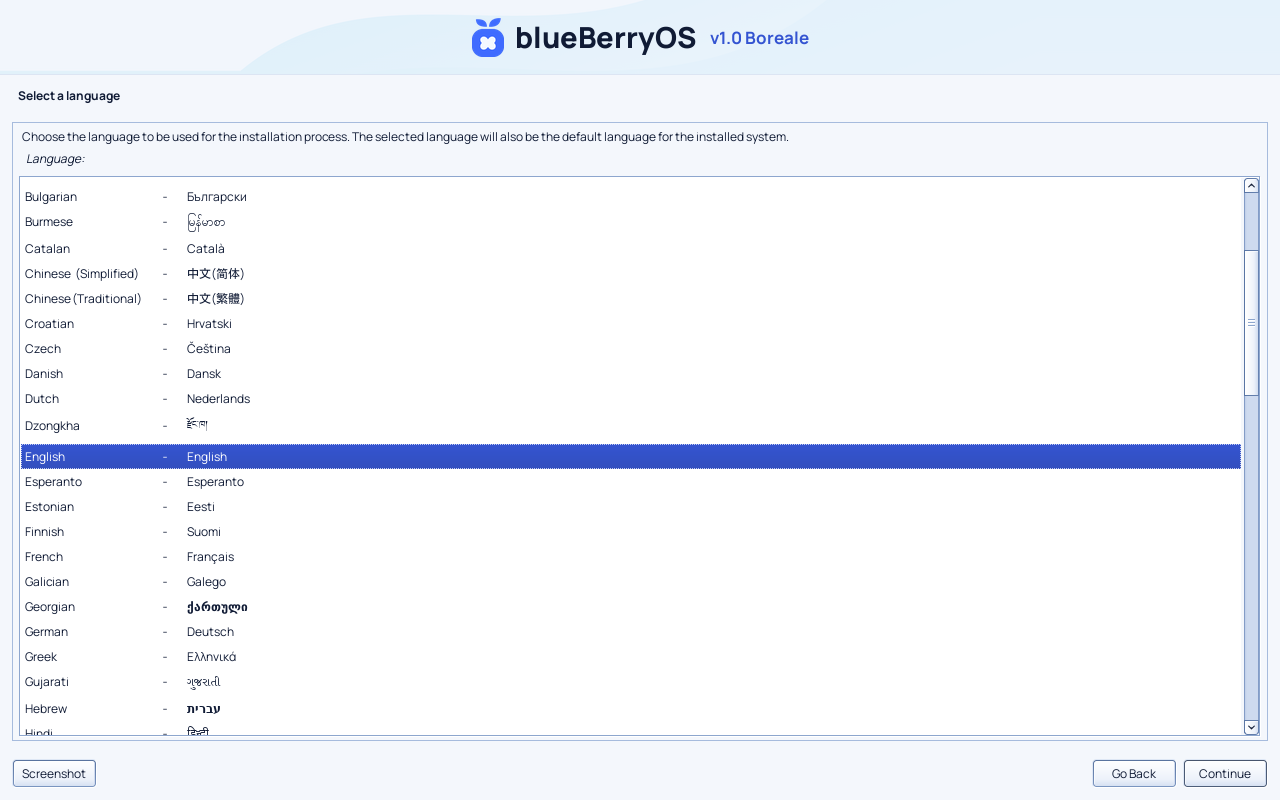
You choose Install blueBerryOS to launch the graphical installer offline. Check the destination disk before confirming the partitions. When you first launch you can connect from GNOME's network settings.
In Boreale v1.0 the graphical installer starts from the start menu. If you are already live, save your work on persistent media, leave the USB stick or ISO connected and restart from Terminal.
sudo systemctl rebootWhen you reboot, go back to the thumb drive or ISO menu and select Install blueBerryOS.
Put the image and its checksum in the same folder. In a Linux terminal open in that folder, run the command for the format you downloaded.
sha256sum -c SHA256SUMSsha256sum -c blueberryos-v1.0-boreale-live-virtualbox-amd64.ova.sha256sha256sum -c blueberryos-v1.0-boreale-raspberry-pi-arm64.img.gz.sha256
The Seal, the Ice and Night wallpapers and the distribution icon set.